
A Gaming Monitor for Your Console: Check the Whole Connection
Avoid buying refresh-rate claims your console cannot use by checking resolution, inputs, and audio together.
Our advice is based on published information and practical buying considerations, not hands-on testing. Product links in this article are direct manufacturer links. If a link earns us a commission, we label it. Read our affiliate disclosure.
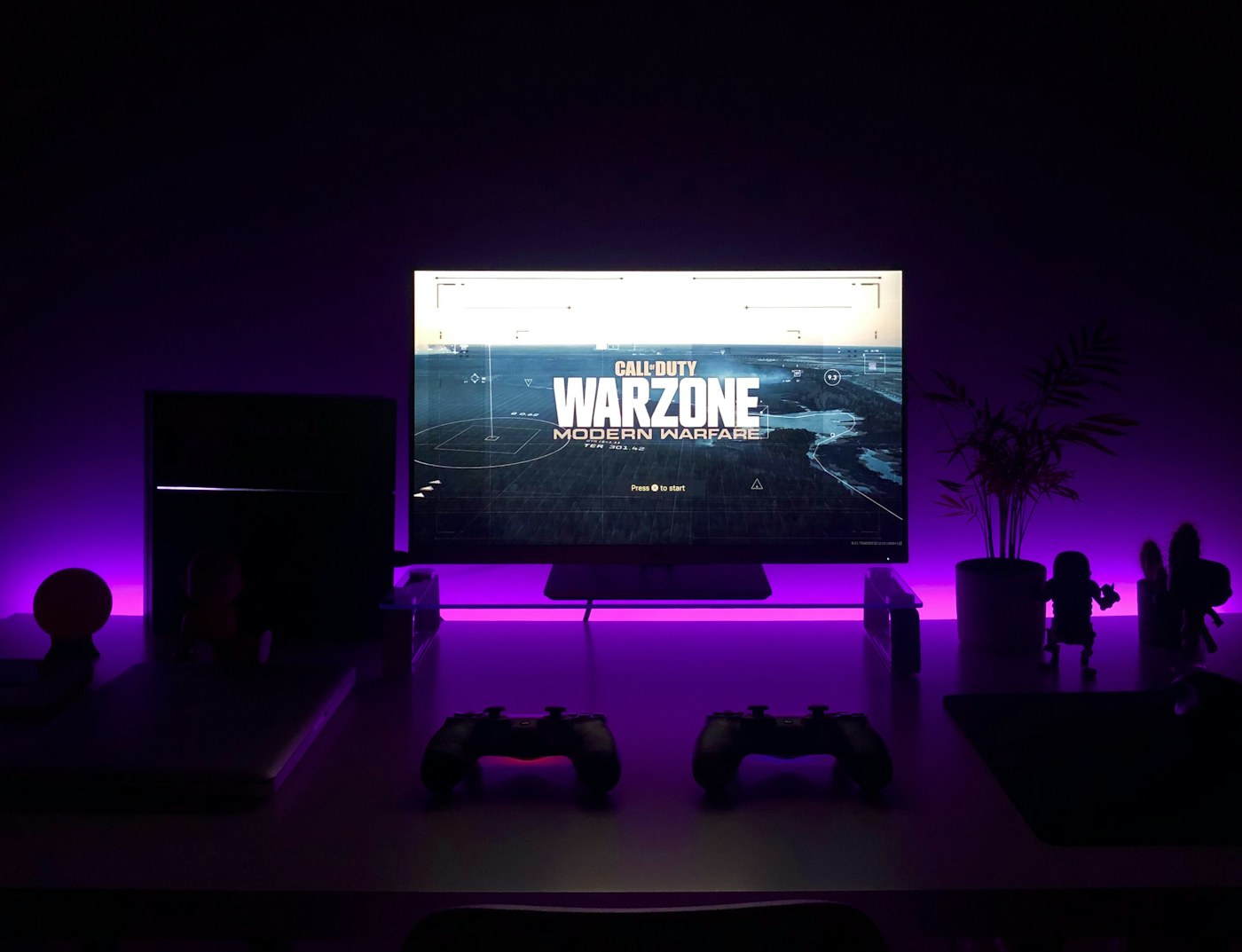
You connect a new console to an impressive-looking monitor, open the settings, and discover that the mode you wanted is unavailable. The monitor advertised a high refresh rate, so what happened? Often, the headline applied to a different input, resolution, or computer connection. Console shopping works best when you verify the entire signal path rather than choosing the largest number on the box.
The short recommendation
Write down your console, preferred resolution, desired refresh mode, and audio plan before shopping. Confirm that the monitor supports that combination over HDMI, then check the console's documentation and individual game support. A display can support a mode the game never outputs. A higher specification is useful only when the rest of the system can use it.
| Your priority | What to verify | What not to assume |
|---|---|---|
| Fast competitive games | Supported HDMI refresh modes | PC refresh claims apply to console |
| Detailed single-player games | Resolution and image quality | Every game renders at native output resolution |
| Smooth variable frame rates | Console-compatible VRR support | Any adaptive-sync label is sufficient |
| Shared work and play desk | Inputs and switching | One cable arrangement suits both devices |
Start with official console guidance
Sony's PS5 resolution guide explains the console's video-output settings and troubleshooting path. Use the equivalent official instructions for your own console, then compare them with the monitor manual. If a setting is missing, examine the display input, cable, and any intermediate receiver or switch before deciding the console is faulty.
For PS5, the official guide is more useful than a seller's vague claim of being “gaming ready.” Supported output also depends on the connected display. Record the settings you care about and confirm them after installation while a return remains possible. Do not promise yourself that a firmware update will add an undocumented feature later.
A product worth investigating
The BenQ MOBIUZ EX2710U has an official product page that you can use as a concrete comparison starting point. Look beyond the product name: open its specifications and supported timings, then match them to the console. This is a research-based shortlist suggestion, not a claim that we measured its response time or verified every console mode in a lab.
A monitor with a strong PC gaming specification can still be an awkward console purchase if its best modes rely on DisplayPort. Consoles generally need the HDMI path checked directly. HDMI version labels alone should not replace the manual's supported-mode table, because implementation and available features matter.
Choose a comfortable desk setup
Screen size should reflect how far away you sit and how much desk space remains. A display that is comfortable from a sofa may feel overwhelming at arm's length. Measure the stand depth, ensure the keyboard or controller has a comfortable position, and check whether height adjustment or a suitable arm will help.
Audio deserves early attention. Some monitors have speakers, some provide audio outputs, and others expect a separate solution. Decide whether you will use a controller-connected headset, USB audio device, or external speakers. Confirm compatibility for that specific route. The presence of an HDMI socket does not guarantee the monitor solves your sound needs.
Avoid paying for unused headroom
A very high refresh specification can be valuable for a compatible gaming PC while adding little for your console. Similarly, a nominal HDR label does not tell you how convincing highlights and dark scenes will look. If image quality matters more than competitive response, compare real picture characteristics and return terms instead of treating every gaming label as an upgrade.
Skip a monitor upgrade when your current display already supports the modes your games use and your main complaint is an unstable network connection. Display hardware cannot repair server lag. Also budget for a suitable desk arrangement before paying for performance that forces an uncomfortable posture.
Console compatibility checklist
- Confirm the exact console model and desired output mode.
- Read the monitor's HDMI supported-timings information.
- Verify VRR compatibility if it matters to your games.
- Include every receiver, switch, and cable in the signal path.
- Plan audio separately from the video connection.
- Test ordinary games and system settings during the return period.
Questions before checkout
Does a high-refresh monitor make every game run faster?
No. The game and console determine available performance modes. The display can only show a compatible signal it receives.
Can I use a computer monitor with a console?
Often, yes, provided the video and audio arrangements are compatible. Check exact inputs and supported modes first.
Is resolution more important than refresh rate?
That depends on your games and preferences. Favor the combination you will actually use, rather than maximizing one specification in isolation.
Explore the options
Use the manufacturer’s current specifications to confirm the exact version, compatibility and return terms before buying. Prices and availability can change.
BenQ MOBIUZ EX2710U
Why consider it: A concrete monitor shortlist candidate with official specifications to compare against console output.
The tradeoff: Verify exact HDMI modes and your audio route before purchase.
Explore at the manufacturer ↗Sources & further reading
Source information checked September 30, 2026. Product revisions and regional availability may differ.
See something that needs correcting? Contact our editorial inbox.
Keep exploring
View all
Choosing a TV for a Bright Living Room
Work around windows, reflections, and daytime viewing before spending more on a new television.
OLED vs. Mini-LED for Evening Movies
Choose a movie-night television around room lighting, subtitles, seating, and the content you actually watch.

Projector or TV for an Apartment? Start With the Room
A realistic guide to screens, throw distance, daylight, cables, and rental-friendly movie nights.