
A Better Video Call Starts Before You Buy a Webcam
Choose a webcam for remote meetings after fixing lighting, camera height and the parts of the call that matter most.
Our advice is based on published information and practical buying considerations, not hands-on testing. Product links in this article are direct manufacturer links. If a link earns us a commission, we label it. Read our affiliate disclosure.
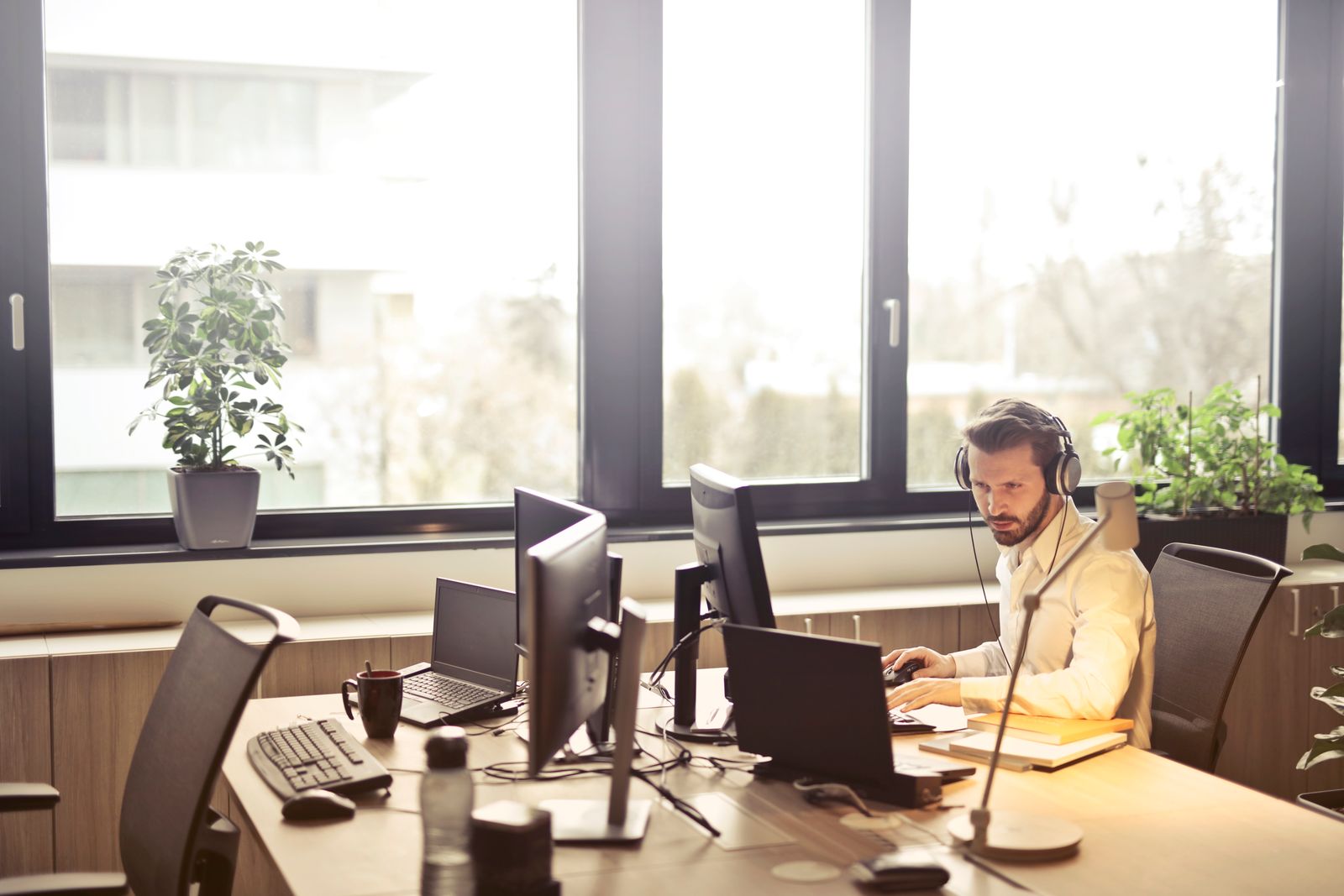
It is ten minutes before a client call. Your laptop camera points up from the edge of the desk, a bright window sits behind you and the room looks darker on screen than it does in person. Buying a new webcam may help, but the first improvement is often moving the laptop and changing where the light comes from.
The short verdict
Fix camera position and lighting first. Buy a dedicated webcam when you need a more useful mounting position, better framing options or features your built-in camera lacks. Logitech's webcam range offers concrete models to compare. This guide does not assign image-quality scores or claim hands-on testing.
What kind of call do you make?
| Typical use | First priority | Buying caution |
|---|---|---|
| Daily one-person meetings | Natural camera height and reliable connection | Wide framing can expose too much room |
| Presenting objects or teaching | Adjustable position and suitable focus behavior | Check minimum focusing guidance |
| Two people at one desk | Framing that comfortably includes both | A very wide view may distort perspective |
| Travel and hotel work | Compact mounting and easy setup | Another accessory to pack and protect |
Put the camera close to eye level if your furniture allows it. Keep the meeting window near the camera so you can look at colleagues without appearing to stare far off screen. These changes cost nothing and can make communication feel more direct.
Lighting before resolution
Face a window or a soft light rather than placing the brightest source behind your chair. Avoid a tiny harsh lamp pointed directly at your face. The goal is comfortable, even illumination that lets the camera work without extreme exposure adjustments. Check the preview at the actual time of day you usually take meetings.
Resolution is only one part of the image. A meeting service may limit transmitted quality according to settings, subscription, connection or participant layout. Buying a camera with a large number on the box does not guarantee that everyone sees that resolution. Check your meeting platform before paying extra for a specification it will rarely use.
Framing and privacy go together
A wide field of view can be helpful for showing a whiteboard or including a colleague. At a home desk, it can also reveal doors, family photographs or a busy kitchen. Choose a camera that suits the space you want to show. Software cropping may help, but check whether it works in the applications you use.
A physical privacy cover makes the camera's state easy to understand, although it does not mute a microphone. Decide whether you want an integrated cover or a separate one. Test how the camera mounts on your monitor; an unstable clip can be more frustrating than a modest image-quality limitation.
Audio may be the better upgrade
If colleagues struggle to understand you, a webcam is not automatically the right purchase. A headset or separate microphone may address the problem more directly. Built-in webcam microphones can be convenient, but distance and room echo still matter. Listen to a short recording before allocating the entire budget to video.
For a shared household, a headset can also keep meeting audio private. If you prefer speakers, check whether the arrangement creates echo or feedback. A good remote-work setup is a system of camera, light, sound and connection, not a single premium accessory.
Compare specific models carefully
Use the official Logitech range to shortlist models, then read the exact product documentation for operating-system support, mounting, connection type and any software-dependent functions. Similar names can conceal different versions. Check whether a USB adapter is needed for your laptop and whether workplace software restrictions affect the advertised features.
Before the return window closes
- Join a meeting from the normal desk position.
- Check the image in morning and evening light.
- Confirm that the mount stays secure.
- Test framing and privacy cover behavior.
- Record speech and keyboard noise separately.
- Verify the camera reconnects after laptop sleep.
- Keep packaging until the daily workflow feels reliable.
Frequently asked questions
Do I need a 4K webcam for work?
Not necessarily. Your meeting software and connection may limit delivery, and better light can matter more than extra capture resolution.
Can I leave a webcam connected?
Usually, yes, subject to your equipment and workplace policy. Use privacy controls appropriate to your situation and remember that covering the lens does not mute audio.
Should I replace a decent built-in camera?
Only if a dedicated camera solves an identifiable problem. Better positioning alone may be enough for ordinary meetings.
Explore the options
Use the manufacturer’s current specifications to confirm the exact version, compatibility and return terms before buying. Prices and availability can change.
Logitech webcams
Why consider it: A concrete manufacturer range for comparing dedicated meeting cameras.
The tradeoff: Higher capture resolution does not guarantee higher quality in your meeting app.
Explore at the manufacturer ↗Sources & further reading
Source information checked September 30, 2026. Product revisions and regional availability may differ.
See something that needs correcting? Contact our editorial inbox.
Keep exploring
View all
The USB-C Dock That Fits Your Actual Workday
Choose a laptop dock around your screens, charging needs and daily routine, without paying for ports you will never use.
Choosing a Monitor for a Small Workspace
Make a small desk more comfortable with the right screen size, stand, connections and text settings.
Mechanical or Low-Profile? A Keyboard for the Way You Type
Find the right keyboard for a shared office, a compact desk or a day spent moving between laptop and desktop.